
Manage Make-Ready Projects On the Go
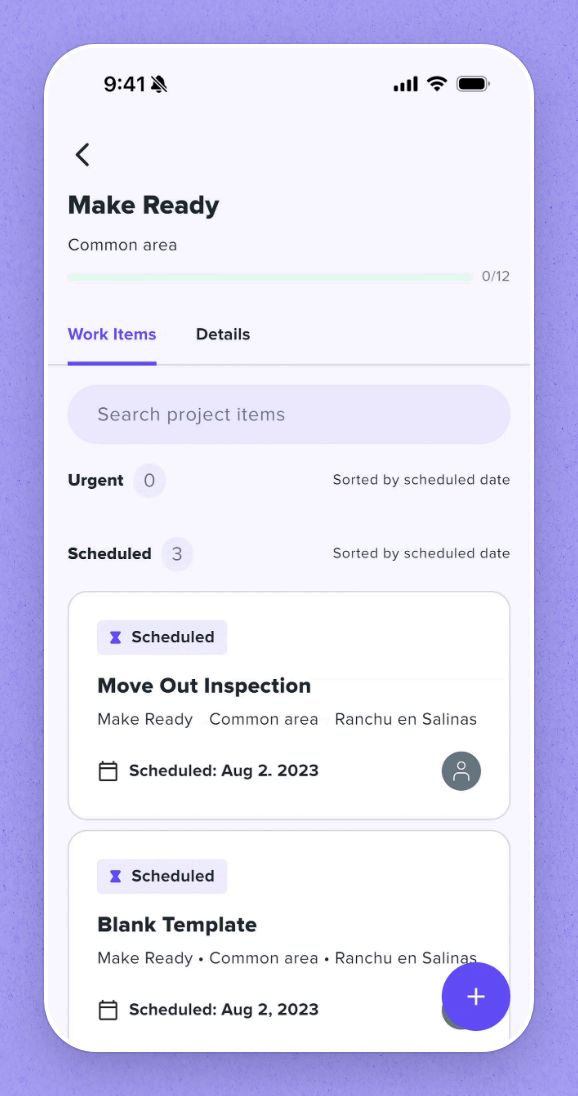
In the HappyCo mobile app, maintenance teams manage make-ready projects on the go, browsing open projects and their scheduled work items.
What’s covered
Add Work Orders to Projects
In the HappyCo mobile app, you can add work orders to your existing make-ready projects. There are two ways to do it, both starting from the project or work order you're managing.
1Create a New Work Order
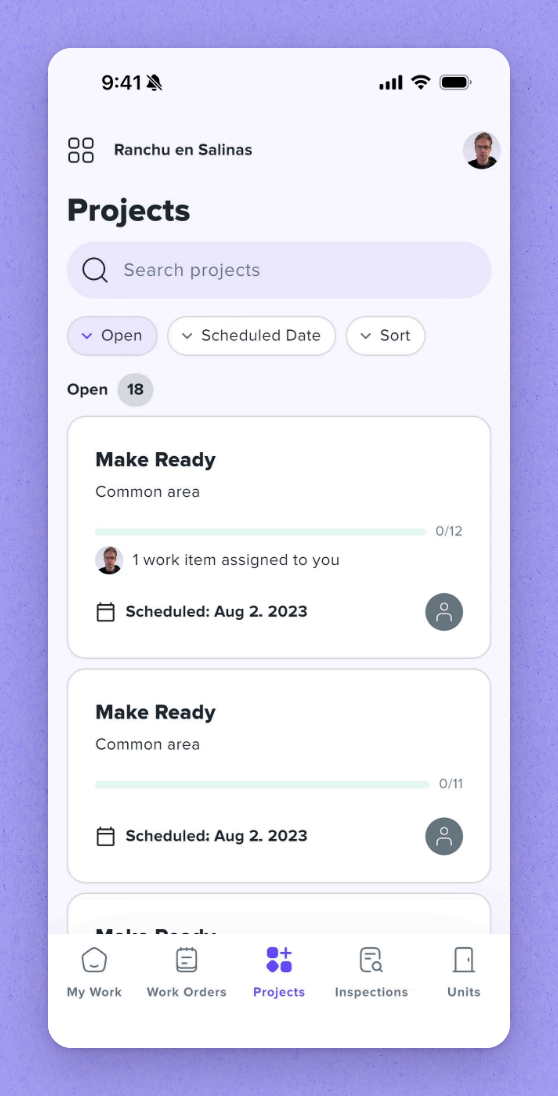
To add a work order to a project, you can create a brand-new work order and drop it straight into a project. Start by creating the new work order from your mobile app.
2Pick a Stage and Category
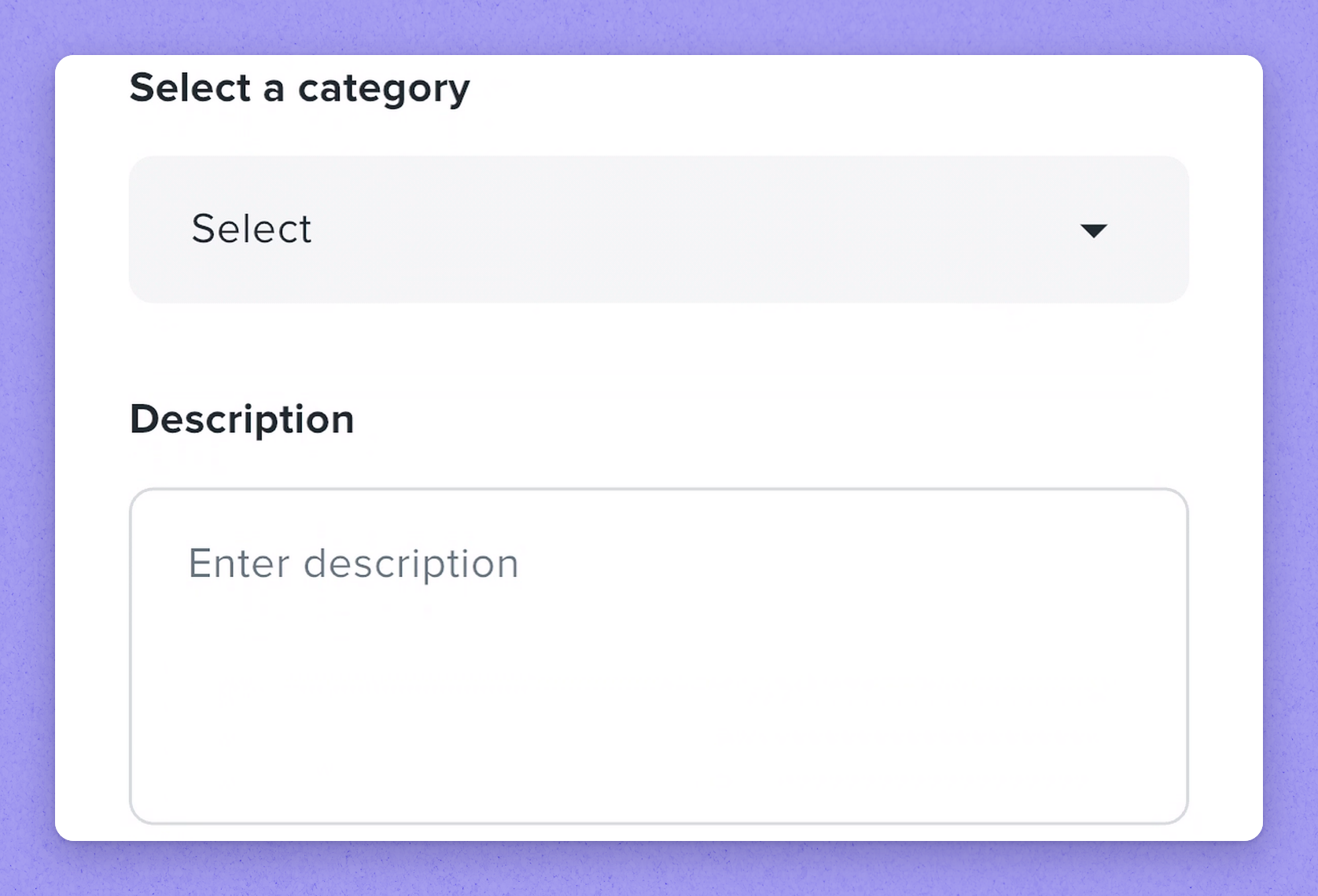
Pick the stage you want to add the work order to. Then choose your category to keep everything organized.
3Choose the Matching Project
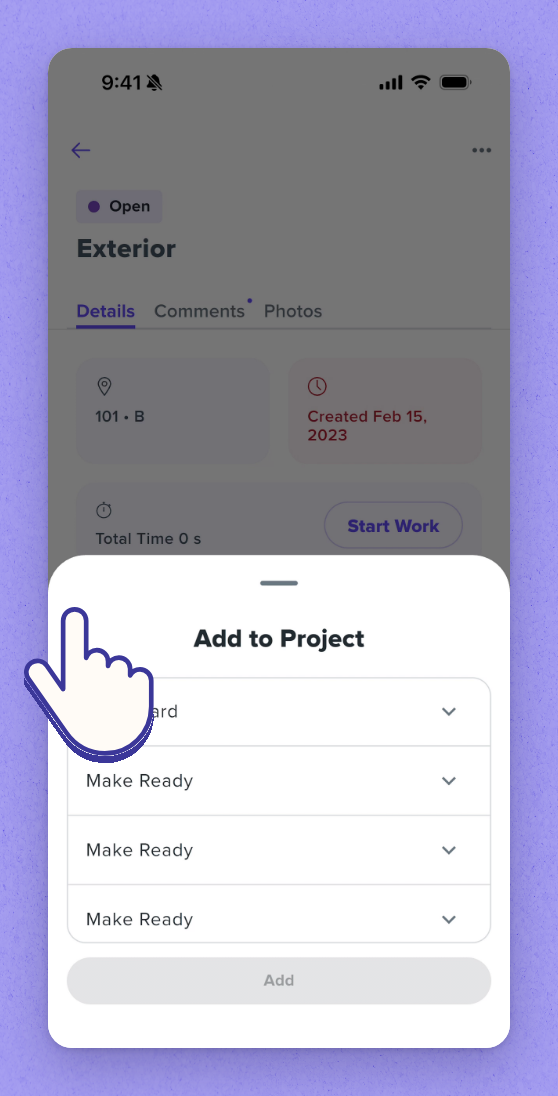
You'll see a list of projects at the same location. Select the project you want to match your work order to.
4Select the Stage and Add
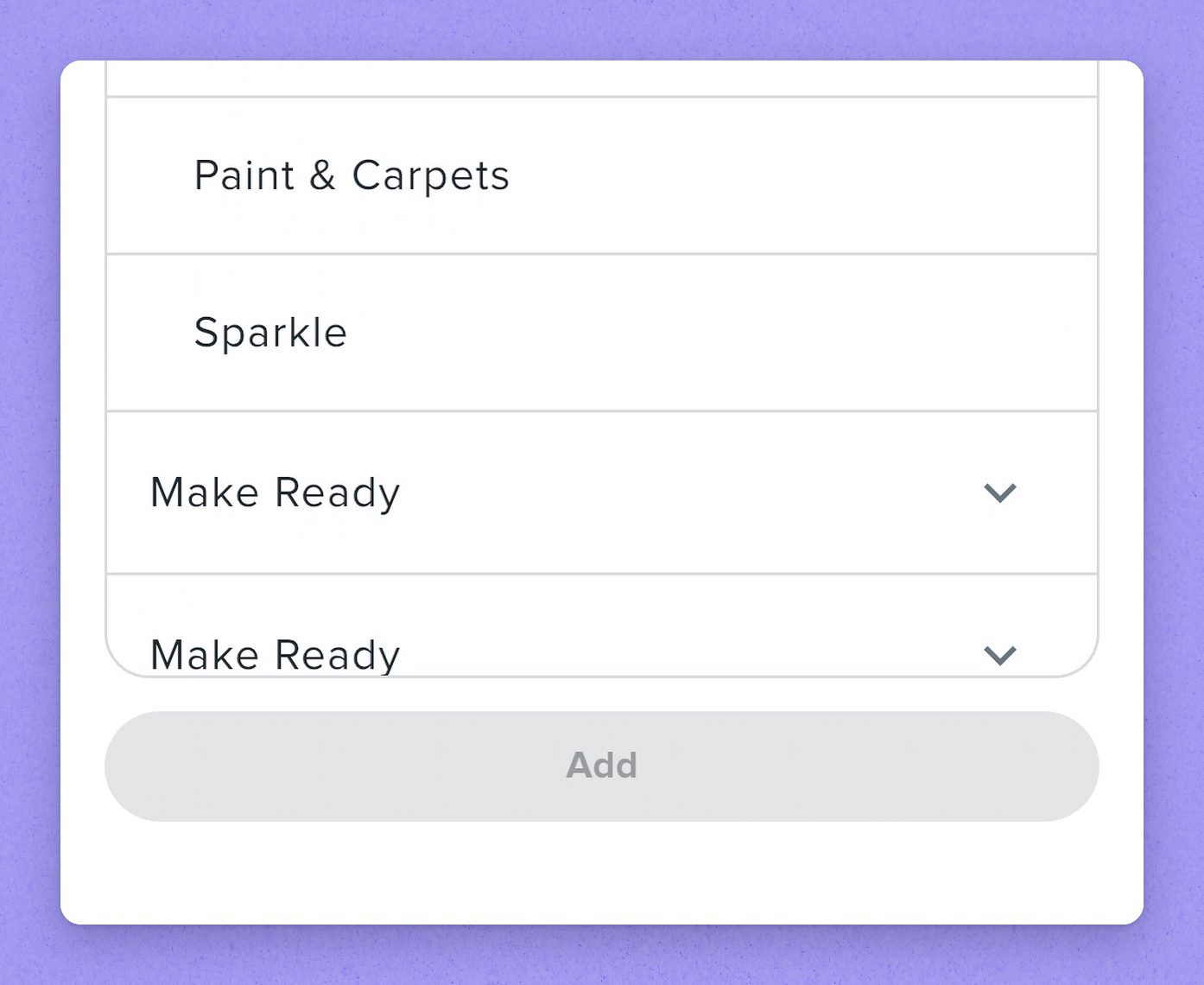
Choose the stage, then tap Add. Your work order is now part of the project.
See it in your properties
HappyCo brings inspections, maintenance and on-call operations into one connected platform.
Made with HappyCo Studio · happy.co